What’s new?
We’ve listened to your feedback, and have made some incredible changes to how you view briefs in the brand portal. 🏗️
There are some major updates to both the UX and the UI, and we’re very excited for you to engage with everything new!
You can head straight to the support page in the portal and watch a quick video taking you through all the changes. Click on “campaigns” inside the support page. 🧑💻
If you want a sneak peak though, read on!
Campaigns tab ⚡️

Everything you need is inside the new campaigns tab
All your briefs are now housed inside the ‘Campaigns’ page. A single campaign will contain all your creative routes (briefs) for that campaign.
You’ve also got overview metrics, which gives you a quick look at the aggregated data for all your campaigns 📑
Campaigns page 🚀

View all the briefs inside a campaign, and aggregated submissions and analytics
‘Submissions’ is what you’ll remember as ‘Creators’ and ‘Posts’ pages inside the old Analytics. We’ve combined these pages for easier use, and you can toggle between creators/posts view by clicking these buttons 👇
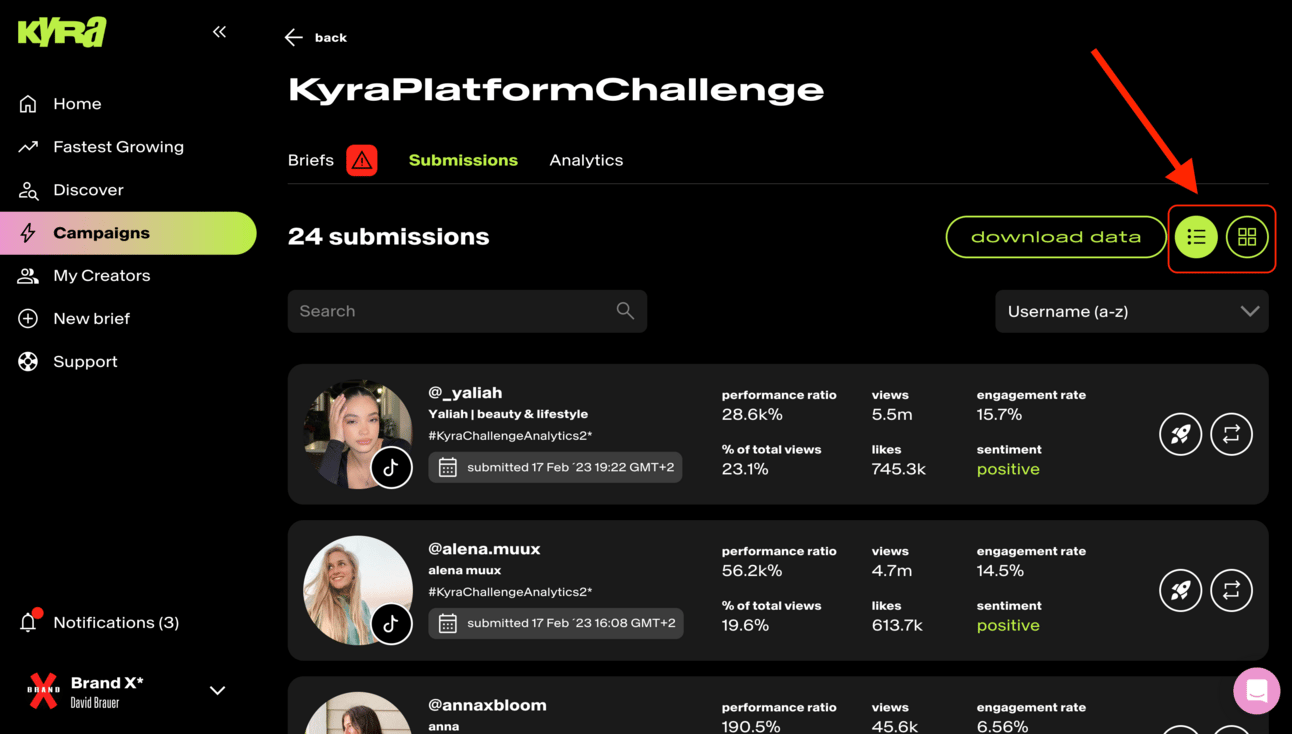
Toggle how you view your creators’ posts
‘Analytics’ is the page you know and love. At the Campaign level, it’s an aggregated data view of all the stats from the briefs in the campaign.

Aggregated analytics for the campaign


Briefs page 📣

Brief contain all the meaty details
Clicking into a Brief will show you all the details about the brief, from brief description, to creator list, drafts, submissions and analytics. 🤓
The old ‘brief actions’ page is no more. Now all your actions are housed inside each brief, and brief actions are now indicated with the action needed symbol ⚠️ and the ‘action needed’ label.

It’s important to clear out your action needed items as quickly as possible, so that we stick to campaign timelines. 🫡
Once you’ve completed an action, you’re now able to see a read-only view of each page. This allows you to come back at anytime and see the brief that creators are being sent, the creators invited to a brief and the draft videos that have been approved. 🧠

Quick tip! 😍
Clicking on notifications will show you all your brief actions, including how near/far you are to the action due date!

Briefs also contain the submission page and analytics page that we mentioned can be viewed in the campaigns page above. When viewing at the brief level, you’re seeing the submissions and analytics data just for that single brief. 📊
And as always, you’re able to export the analytics as a PDF, and export the submissions as CSV. ⬇️
Reminder that you can head straight to the support page in the portal and watch a quick video taking you through all the changes listed above. Click on “campaigns” inside the support page. 🎥
That should do it for this week! If you’ve read this far, hopefully you’ve seen how convenient and easy it is for you to monitor your campaigns and complete actions. We’re always looking to improve your experience, and are open to thoughts, comments and feedback anytime. 🙏
See you for the next update! 🧑💻
